Change Award Status
An Award refers to a Reward that was granted to a Member for “free,” without the Member having to spend their Metrics to redeem it.
An Award can optionally go through the following life cycle if you want your loyalty program to track the status of the Award once granted to the Member. This life cycle requires additional integration to automate, as external systems are responsible for updating this status, not the Loyalty platform.
-
Pending: The Award has been created but not yet assigned to a Member. Once a Member is assigned, the status changes to either Awarded or Claimed (if "Auto Claim Upon Award" is enabled).
-
Awarded: The Member has received the Award, but hasn't redeemed it. If an Award is not set to "Auto Claim Upon Award," then it will be set to Awarded when initially created. The status will need to be changed to Claimed either manually, or by an API integration.
-
Claimed: The Member has received the Award, and has redeemed it. If an Award is set to "Auto Claim Upon Award," then it will be set to Claimed when initially created. A Claimed Award can no longer be edited.
-
Canceled: The Award has been canceled and can no longer be redeemed by the Member.
Note: You can’t set an Award status back to an “earlier” status in the life cycle. For example, once an Award has moved to Claimed, you can’t set its status back to Pending.
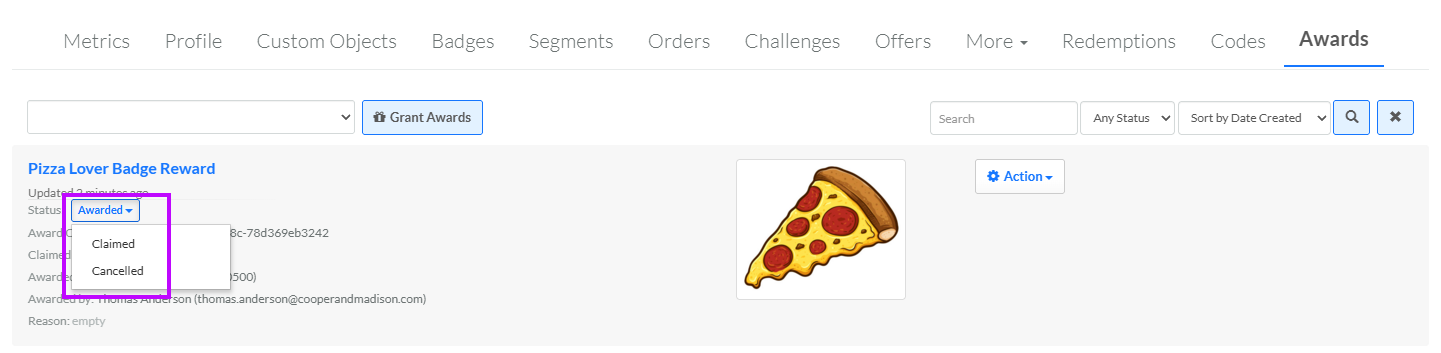
From the Awards tab of the Member Details screen, you can change the status of an Award.
To manually set the status of an Award from the Member Details screen:
-
Select Members from the top navigation bar, then select Members > Members from the side navigation menu. The Members screen is displayed.
-
On the Members screen, search for and select the desired Member (see Search for a Member for more information). The Member Details screen is displayed with the Metrics tab selected by default.
-
Select the Awards tab.
-
Optionally, search for the desired Award. See Member Details Tab Overview - Awards for more information on the available search options.
-
Next to the desired Award, select the desired status value from the drop-down menu.